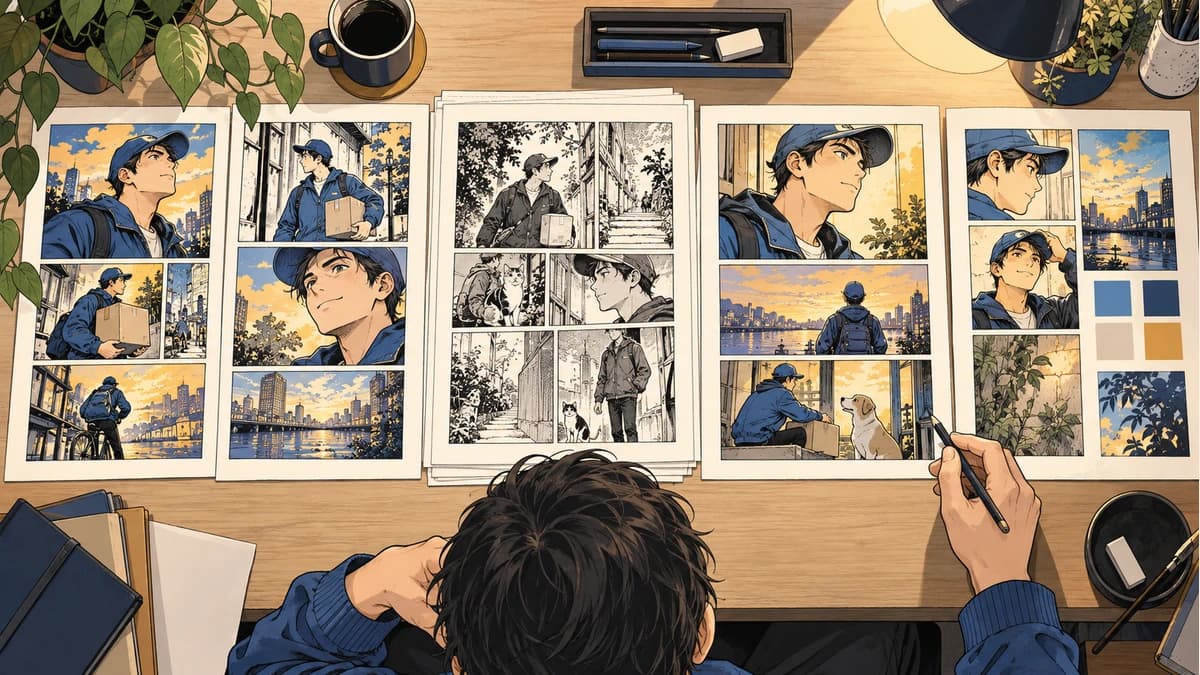
A single colored page tells you whether you like a style. A sequence tells you whether that style works for your comic. Hair can shift between scenes, a dark panel can become hard to read, and a missed file can leave a gap in an otherwise convincing chapter.
Use a batch manga colorizer after you have accepted a real test page. Prepare the remaining pages, check the credit estimate, process the group, then review adjacent outputs before delivery. Keep your editable originals in your drawing app throughout.
The 12-page example below is a planning exercise, not a customer case study or a measured speed test. It gives you a page manifest, a credit calculation, and a review record you can adapt to your own chapter.
Prepare a 12-page source folder
For this example, the chapter has 12 image files, one per page, with no cover or bonus pages. Put the final source exports in one folder and name them chapter-001.png through chapter-012.png. These names describe the intended sequence before anything is uploaded.
VividManga sorts loose images naturally by filename. ZIP and CBZ imports use the full paths inside the archive, so nested folders can affect order. A flat folder with unique numbered filenames is easier to check. If the cover belongs first, call it chapter-000-cover.png and include it in your count. A two-page spread saved as one image counts as one input image in the estimate.
If you use Clip Studio Paint, its Page Manager supports arranging pages and renaming page files to match that order. Its batch export controls also support a filename prefix and numbered exports. These are preparation steps in your drawing software.
Before upload, remove duplicate exports, thumbnails, archive metadata, and anything outside the chapter. Different extensions do not make two versions of the same page useful inputs. Keep one accepted source per position.
| Source file | What to check in this example | Test or batch? |
|---|---|---|
chapter-001.png |
Opening scene and ordinary lighting | Single-page test |
chapter-002.png |
Dense shading and small lettering | Single-page test |
chapter-003.png to chapter-012.png |
Remaining sequence and recurring details | Ten-image batch |
The scene descriptions are example review assignments, not claims about supplied artwork. Replace them with the difficult features in your own pages. The page-order guide covers covers, spreads, and bonus material in more detail.
Generate two real tests before committing the rest
Use artwork you own or have permission to process. VividManga returns rendered images; batch downloads contain WebP outputs in a ZIP, rather than editable drawing layers. The service may store inputs, outputs, and job information to provide and support colorization and downloads, prevent abuse, and maintain reliability. It works with outside AI processing providers. For unpublished client or collaborative work, confirm upload permission with the client, co-creators, and publisher, including any confidentiality requirements. Read the Privacy Policy and Terms of Service before uploading.
The public policy does not specify a fixed retention period or promise that artwork will not be used for training. If your project requires those assurances, use non-confidential practice artwork until you have resolved the terms. Check the required output dimensions and file format with your client before testing.
Check one page before a larger batch
Use an authorized practice page and inspect the rendered result before processing a chapter.
PNG, JPG, or WebP under 5 MB works best.
Use this result to judge palette, line art, and speech bubbles before scaling.
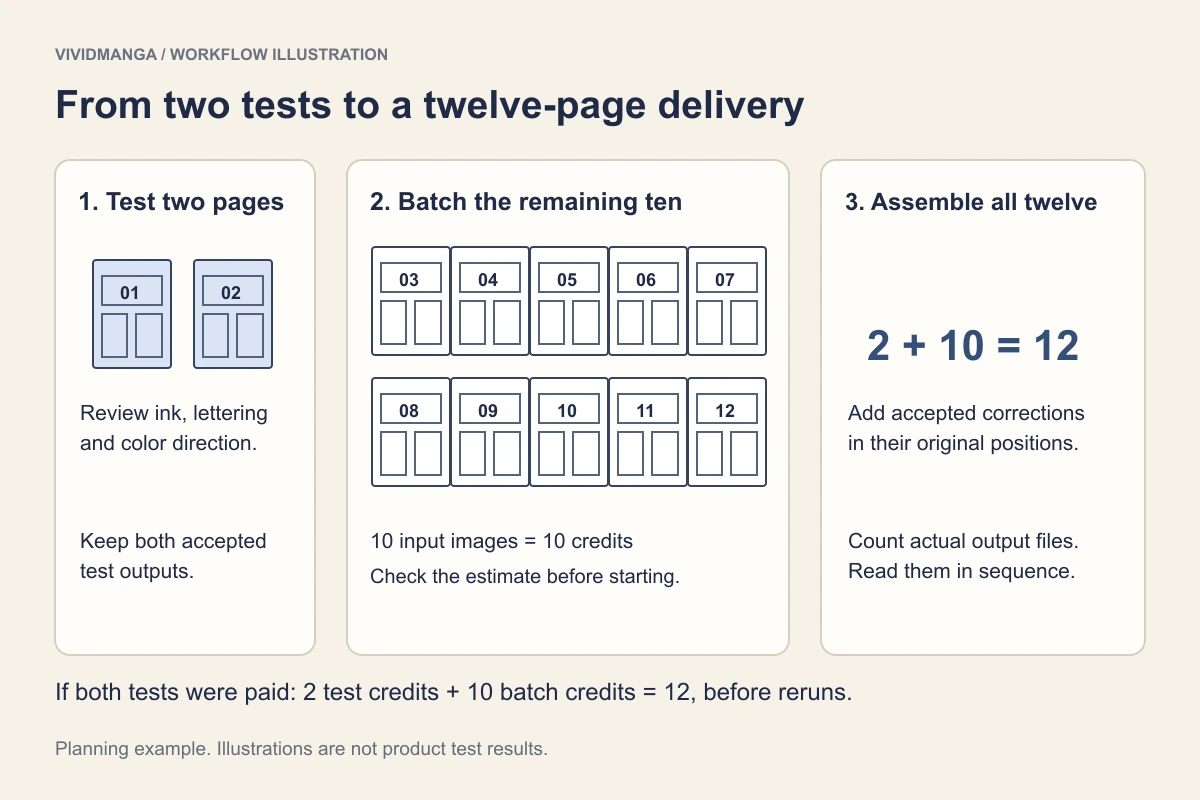
Open the single-page manga colorizer and try the ordinary page first. Then test the difficult page with the same chosen style. Save both outputs beside their sources.
Look at the result at normal reading size, then zoom in. Check whether lettering is still legible, thin ink lines remain distinct, and dark areas separate the character from the background. Compare recurring hair, clothing, and props between the two pages. An attractive face crop alone is a weak reason to approve the whole chapter.
Write down what you accept: for example, "natural style; keep the jacket blue; check lettering on dark panels." Treat the color reference as your review standard. VividManga can apply a selected style across the batch, but this does not guarantee identical character colors. Keep named swatches in your drawing software if you need a precise reference; Krita's Palette Docker supports swatch names and groups.
The batch workbench's source preview and style examples do not replace these tests. They are not newly generated colored samples of your chapter. If the two tests already need extensive correction, adjust the source, test another style, or finish the coloring manually before submitting more pages.
Check what the batch will cost
With both tests accepted, keep those two output files and submit only chapter-003.png through chapter-012.png to Colorize Manga Pages. The multi-image route accepts JPG, PNG, and WebP, up to 100 images per selection. ZIP and CBZ are options when your pages are already packaged.
For new batch jobs, the current estimate is one credit per input image. The ten remaining images therefore require ten credits. If both initial tests were paid generations at one credit each, this example uses twelve credits before any separate reruns. If a test used an available free allowance, its paid-credit cost differs. Check your displayed balance and estimate instead of assuming a free allowance is available.
Uploading the two accepted test pages again would create two more generations. It would not automatically reuse the results you already approved. Keep them in the delivery folder and avoid resubmitting them unless you want new versions.
The cost screen shows detected page count and credits. Compare its count with your manifest; do not rely on it to check the full reading sequence for you. If ten expected pages become eleven, stop and inspect the selection. For a larger project, use the batch cost worksheet and check current credit packs on the pricing page. Credit consumption and the cash price of a pack are different calculations.
Keep the style direction, then start the batch
Choose the style you accepted in the single-page tests before confirming the batch. Check that the first source preview belongs to the intended project. A familiar filename is not enough if you have several revisions of a chapter on your device.
On a phone, select the numbered exports from Files or your image picker, and check the selected count. Loose images avoid having to create an archive on the phone. Keep the original files accessible until the uploaded job appears in your history. Browser storage and mobile navigation can be interrupted; a saved server job is the place to return to check processing.
Once processing begins, use the job's completed, pending, and failed counts to follow progress. A batch may run in several rounds. The elapsed time between creating a job and receiving its last page includes waiting as well as processing, so it should not be treated as the generation time of a single image. For your own schedule, record when you submitted the job and when the accepted delivery folder was ready, including your review work.
Review neighboring pages and choose the right correction
Download the available results and combine them with the two accepted test outputs in a working folder. Read the sequence in order. A costume change that looks plausible on one page may be obviously wrong beside the previous page.
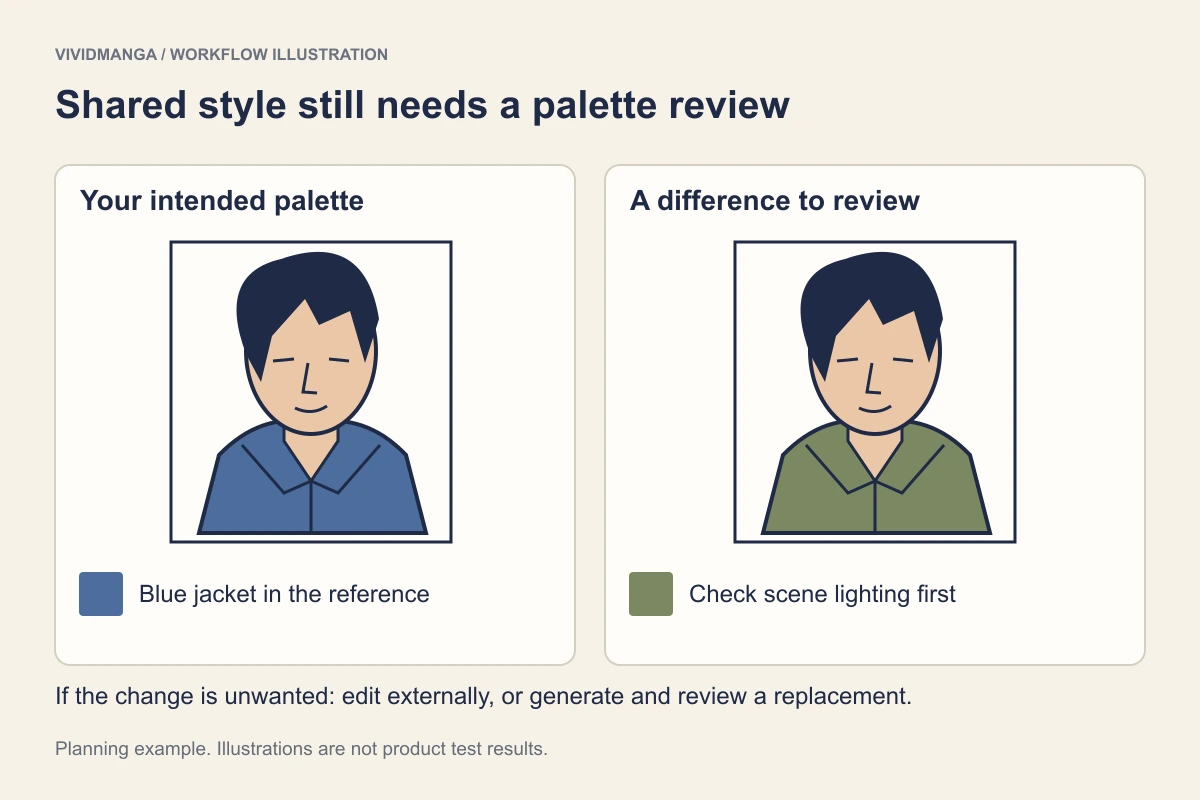
Compare each recurring detail against the reference you saved. Allow deliberate lighting changes where the scene calls for them, but check unexplained changes in hair, clothing, or a repeated prop. The character color consistency guide has a more detailed palette review workflow.
A technical failure and a completed image you dislike need different actions:
| What you see | What to do |
|---|---|
| A page has a failed processing status | Use the failed-page retry control. A manual retry reserves that page's credit cost again; another terminal processing failure refunds its reserved charge. |
| A page completed, but the lettering or palette needs correction | Edit the rendered output in your drawing app, or generate that source separately and review the new result. A new generation can use more credits. |
| Work is pending because credits ran short | Review the balance and remaining work before continuing. This is not a rejected color result. |
| The output looks acceptable alone but clashes with its neighbors | Compare the scene's lighting and reference colors before deciding which page to change. |
Keep the first output while you compare a replacement. A rerun may fix a jacket and introduce a different problem in a face. Save only the version you accept into the delivery folder; manually corrected or separately generated pages need to be assembled there by you.
Assemble a delivery folder someone else can verify
For the example, the final folder should contain twelve accepted images: the two tests and ten batch outputs, with any accepted corrections in their intended positions. Open the ZIP after downloading and count its actual entries. Check it again after retrying failed pages, and use individual page downloads if you need to assemble or verify a replacement.
Do not judge completeness from the archive's filename alone. Compare the contents with your source manifest, and rename the final delivery copies consistently if source and download names differ. Keep those delivery copies separate from rejected candidates and editable masters.
Use this review record as a template. Fill it in after inspecting your own output; the blank cells are not reported test results.
| Page | Source version | Accepted output | Lettering and ink | Palette beside neighbors | Action |
|---|---|---|---|---|---|
| 001 | v1 | ||||
| 002 | v1 | ||||
| 003 through 012 | One row per page |
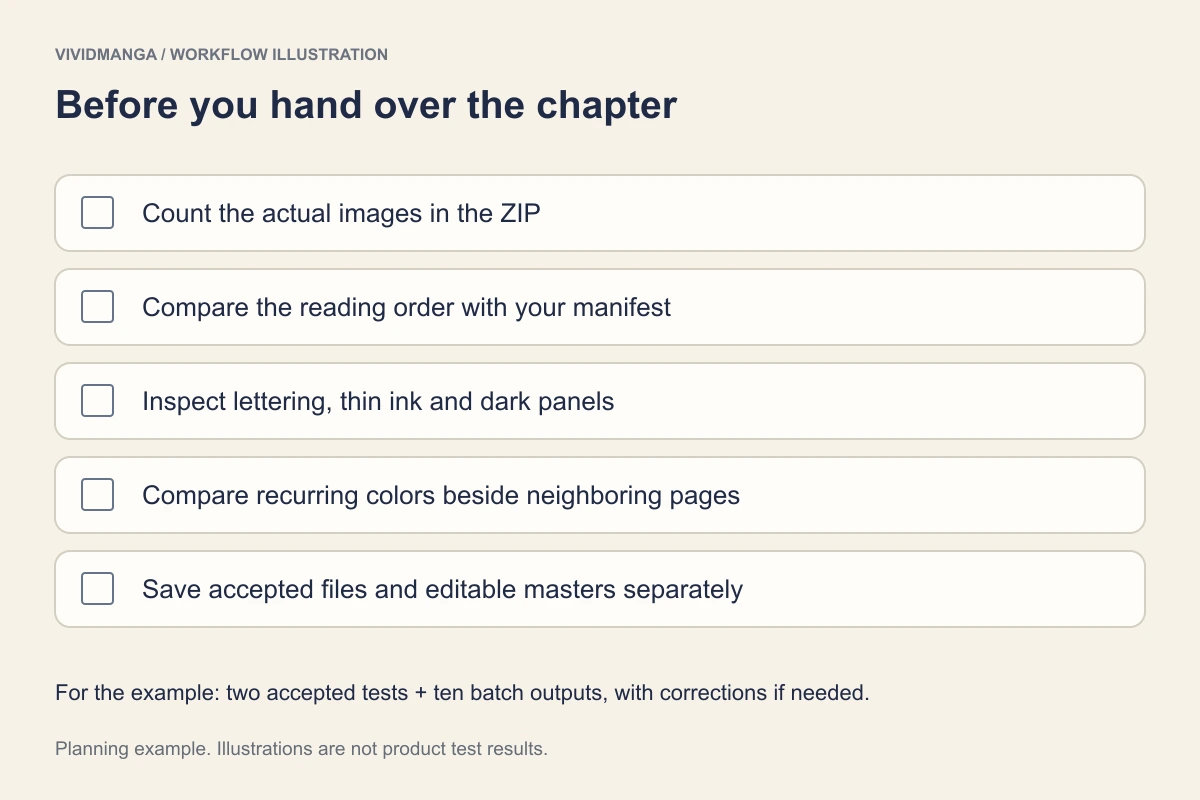
Open the first, a middle, and the last delivery image on the device your reader or reviewer will use. Check dimensions, text, and page sequence there. Keep a local copy of accepted outputs and the original layered project; online job history is not your production backup.
Questions before a larger chapter
Do I have to create a ZIP or CBZ?
No. You can select supported loose images directly. Use an archive when it is already part of your workflow, and verify the detected count before processing.
Does choosing the same style lock character colors?
No. The shared style supplies a common direction. You still need to compare recurring details and correct unwanted differences between pages.
Can I retry a completed page because I dislike its colors?
The failed-page retry control is for processing failures. For a completed image, edit it externally or generate the source separately, then put the accepted replacement in your delivery folder.
Will I receive editable layers?
No. Batch output is rendered WebP images in a ZIP. Keep your line art, lettering, flats, and shading layers in your original drawing project.
When the test pages meet your review standard, upload the remaining pages you own or are authorized to process. Check the Privacy Policy and Terms of Service, bring your manifest, and compare its count with the estimate before you start.