A manga panel colorizer applies a rendered color pass to a panel or page while the creator checks line art, lettering, panel borders, and scene continuity. Panel tests are useful for difficult details and palette experiments, but the result must be reviewed inside the full page because crop context affects lighting, background, and visual hierarchy.
Short answer
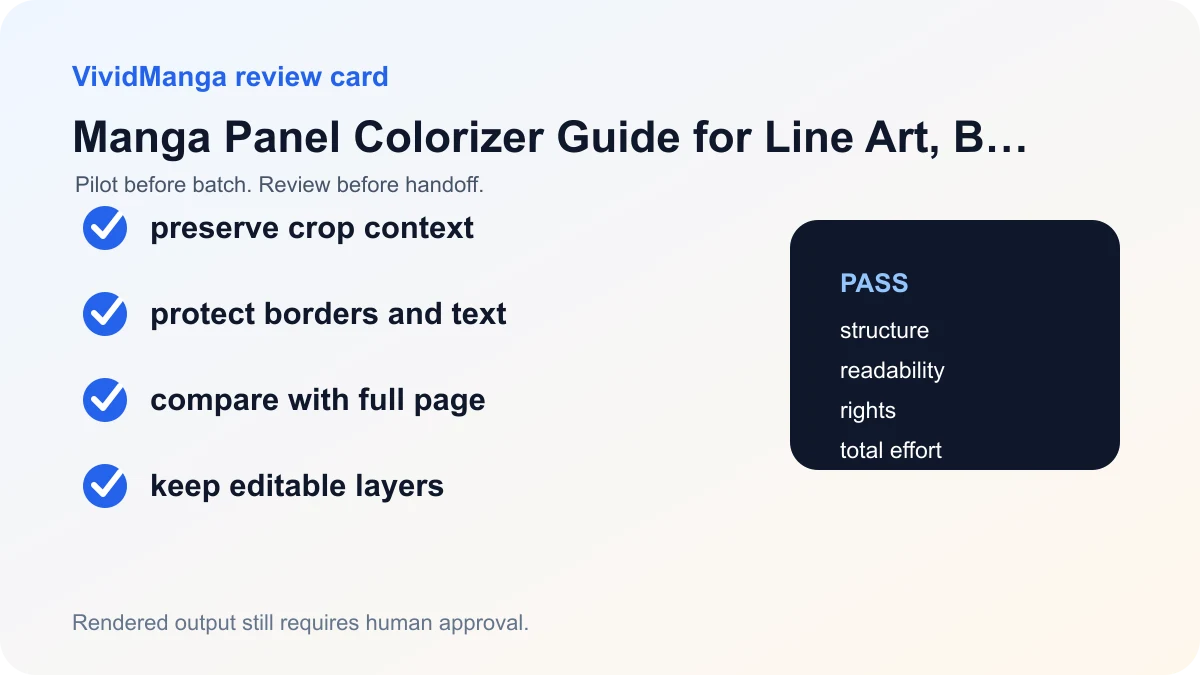
Keep the full panel border and enough surrounding context to understand the scene. Test panels that expose likely failures, then place the result back beside the full page. Protect bubbles and effects first. Use the panel result as a reference when the final page still requires layered flats, shading, or manual corrections.
A five-step workflow
1. Choose panel or page deliberately
Use a panel crop when you need to test a face, costume, prop, lighting problem, or background treatment in isolation. Use the full page when reading rhythm, balloons, and cross-panel balance are part of the decision.
A panel that looks good alone may be too bright, detailed, or saturated when returned to the page.
2. Keep enough context
Include the complete border, bubble tails that enter the panel, overlapping silhouettes, and a small margin around the crop. Do not remove nearby effects that explain motion or depth.
Save the crop coordinates or keep the panel on a duplicated page so the result can be aligned for comparison.
3. Inspect small closed areas
Hair gaps, fingers, jewelry, folds, and areas around lettering often expose spill and missed fills. Compare them at full resolution rather than relying on a reduced preview.
Manual fill tools use reference layers and gap settings for this reason. A generated pass still needs the same careful edge review.
4. Return to page context
Place the accepted panel beside or over the original page and compare focal contrast, character identity, light direction, and background intensity with neighboring panels.
If it breaks the sequence, keep the useful palette idea and rebuild the final color inside the page-level project.
5. Document the handoff
Record the source panel, accepted image, palette notes, and known corrections. Mark clearly that the VividManga output is rendered and does not contain editable line, flats, shade, or text layers.
For team work, attach the color reference to the original page file rather than sending the rendered panel without context.
Decision table
| Check | Pass condition | If it fails |
|---|---|---|
| Crop | Full border and scene context remain | Expand the test area |
| Edges | Hair, fingers, effects, and bubbles stay clean | Repair or reject |
| Page fit | Panel supports neighboring contrast and light | Use only as reference |
| Handoff | Source and editable project remain attached | Do not treat render as master |
Decide between a crop and the full page
Use a panel crop when the question is local: Can the tool separate a hand from a sleeve? Does a palette idea work on this costume? Will a dense background overwhelm the face? Use the full page when the answer depends on scene lighting, panel-to-panel rhythm, a balloon that crosses the border, or a color cue established elsewhere. A crop is a diagnostic sample, not automatically a final asset.
Include context around the panel. Keep the complete border, every balloon tail that enters or leaves, and a margin of neighboring art when it affects light or overlap. Record the crop rectangle as x, y, width, and height from the top-left of the master page. Do not resize the crop between extraction and reintegration. If the service output changes dimensions, align from known border intersections and scale once with the best resampling method in the art application.
Reintegrate a panel without a visible seam
- Duplicate the page master and keep its pixel dimensions, color profile, and orientation unchanged.
- Place the rendered crop on a new layer above the source at the recorded coordinates.
- Reduce opacity temporarily and align panel borders, speed lines, and two interior landmarks.
- Add a mask. Hide color from lettering, border ink, and any area where the rendered contour no longer matches.
- Put clean ink above the color when the source project allows it. Preserve balloons and effects on their own layers.
- Inspect the crop edge at 100 percent. Feather only color or atmosphere that should cross the edge; do not blur the black panel border.
- Compare the panel with its neighbors at reading size. Match value range, light direction, background intensity, and recurring character colors.
A one-pixel halo usually means the crop was scaled, the mask missed an antialiased edge, or the source and render use different border pixels. Move or rebuild the mask before softening the entire edge. A lighting seam is different: the geometry aligns, but the crop is warmer, brighter, or more saturated than the page. Correct it with a clipped adjustment layer or rebuild the color in the layered page file.
Worked example
Imagine a 2400 by 3600 page with a difficult top-right panel. The crop begins at x 1280, y 180 and measures 940 by 1120 pixels. Save those values in the review note. The output preserves the face and hand but gives the background a bright blue that fights the next panel's night scene. Align the render by the top border and the character's eye, mask color away from the bubble, then lower the background value with a clipped correction. If the character still reads as the same person and the page focal order returns, the crop has supplied usable color. If facial geometry moved, reject it rather than hiding the change with a soft mask.
Panel handoff record
Record the master filename, crop rectangle, output filename, accepted corrections, palette anchors, and the page version that received the crop. Send the layered page and reference together. A loose render without coordinates forces the next artist to guess alignment and can make an exploratory panel look like an approved master.
VividManga returns a rendered image, not a layered working file. Keep source, ink, flats, masks, lettering, and final grading in the art project. Upload only owned or authorized art, and review the Privacy Policy and Terms of Service for confidential work.
Test your manga color direction
Upload one page, compare the before and after result, then batch your chapter when the style is ready.
PNG, JPG, or WebP under 5 MB works best.
Use this result to judge palette, line art, and speech bubbles before scaling.
Test the crop in the Manga Colorizer. If the crop question is really about source defects, use the black-and-white preparation guide first.
Protect border and lettering geometry
Panel borders are alignment references, not disposable crop edges. Include their full thickness in the crop, then mask color beneath the original border ink after reintegration. When a balloon overlaps the border, include the complete balloon and tail. Cropping through either shape makes it harder to determine whether the returned edge is an output change or a crop artifact.
Small closed regions need inspection at native size. Eyes, jewelry, hair gaps, speed-line pockets, and hand details may receive a color that looks plausible when zoomed out but contradicts the drawing. The Clip Studio Paint fill documentation describes gap closing, reference layers, and filling narrow leftover areas for manual cleanup. Those controls support correction after review; they do not predict the AI result.
When several panel tests belong to one page, do not paste them independently and grade later. Establish the page's light and palette first, then correct every accepted crop inside the same layered project. Otherwise, each crop can bring a different white balance or contrast range. If matching the crops requires broad repainting, process the full page or keep the panel results as palette references. The final decision should be made on the assembled page at both native size and reading size.
Save the crop recipe with the page
The crop rectangle, scale operation, mask name, and correction layers belong in the page notes. If the master is resized for another edition, recalculate the crop from the original coordinates rather than dragging the old render by eye. Preserve the raw crop result outside the page file for comparison.
Before export, toggle the inserted color off and on at native zoom, then inspect the full page on the target device. This catches both pixel seams and scene-level imbalance. If either remains uncertain, keep the panel as a reference and rebuild the final color in the layered master.
References used for this guide
- Clip Studio Paint fill tool guide: The fill tool documentation covers gap closing, reference layers, lasso fill, and small leftover areas that often need manual cleanup.
- Clip Studio Paint reference layer guide: Reference layers let fill and selection tools use separate line art as a boundary, which is why clean separation makes manual correction easier.
The linked fill and reference-layer manuals support the manual selection, gap, and cleanup mechanics. The crop decision and reintegration recipe are editorial workflow guidance rather than evidence of a guaranteed AI behavior.
FAQ
Should I color a panel or the whole page?
Use a panel for a focused palette or failure test. Use the whole page when balloons, cross-panel lighting, pacing, and final composition matter.
How tight should the crop be?
Keep the full border and enough surrounding material to preserve bubble tails, overlapping shapes, effects, and scene context. Avoid cutting directly through contours.
Can a panel result be pasted into the final page?
It can, but verify alignment, edge quality, resolution, and scene continuity first. Production work often benefits from rebuilding or correcting the color in the layered page project.
Does VividManga return a layered panel?
No. It returns a rendered image. Keep editable line art, color, shading, and text layers in the original art software.